
Preparing a Balance Sheet in Tally: A Step-by-Step TallyPrime Guide
Here is an uncomfortable truth about Tally: it will happily show you a balance sheet even when your books are wrong.
TallyPrime does not judge. Post a sale to the wrong ledger, skip one bank charge, or park a laptop under expenses, and the report still opens with a confident set of numbers. The software is not the problem. The groundwork underneath it is.
That is why preparing a balance sheet in Tally trips up so many students and freshers. The report is one click away. Knowing whether to trust it is the real skill, and it is exactly what interviewers test.
This guide walks you through the full TallyPrime flow, two worked examples with real numbers, and the checks that catch mistakes before your manager does.
Note: Many older guides were written for Tally.ERP 9. The steps below follow TallyPrime Release 7.x, and the Balance Sheet screen works the same way across recent releases.
Table of Contents
- What Is a Balance Sheet in Tally?
- What Should You Check Before Preparing a Balance Sheet in TallyPrime?
- How Do You Prepare a Balance Sheet in TallyPrime?
- Example 1: How Do You Prepare a Balance Sheet for a Service Business in Tally?
- Example 2: How Do You Prepare a Balance Sheet for a Trading Business in Tally?
- Why Does My Balance Sheet Not Tally in TallyPrime?
- Which TallyPrime Shortcuts Make the Balance Sheet Easier?
- Why Should Students and Career Switchers Learn This?
- Final Takeaway
- Frequently Asked Questions
What Is a Balance Sheet in Tally?
A balance sheet is a statement that shows what a business owns (assets), what it owes (liabilities), and what belongs to the owner (capital) on a particular date.
It always follows one equation:
Assets = Liabilities + Capital
In TallyPrime, the default Balance Sheet is horizontal. Liabilities sit on the left and Assets sit on the right. The net profit from your Profit & Loss account is added on the liabilities side, which is what makes both totals match.
Here is where the main groups land:
- Liabilities side: Capital Account, Loans (Liability), Current Liabilities, Profit & Loss A/c
- Assets side: Fixed Assets, Investments, Current Assets (stock, debtors, cash, bank)
Old vs new navigation: Older guides tell you to go to Gateway of Tally > Display > Balance Sheet. In TallyPrime, press Alt+G (Go To) and type Balance Sheet, or pick it straight from Gateway of Tally.
What Should You Check Before Preparing a Balance Sheet in TallyPrime?
A balance sheet is only as good as the data behind it. Run through this list first:
- The company has the correct financial year (for example, 1-Apr-2025 to 31-Mar-2026)
- Every ledger sits under the right group
- Opening balances are entered, and the debit and credit sides match
- All vouchers are recorded: sales, purchases, payments, receipts, journals, and contra entries
- Closing stock is updated, if the business trades in goods
- The Trial Balance shows equal debit and credit totals

How Do You Prepare a Balance Sheet in TallyPrime?
Think of it as a six-step relay. Each step hands a clean result to the next one.
Step 1: Create ledgers under the right groups
Go to Gateway of Tally > Create > Ledger. The Under field is where most beginners slip, because the group decides where the ledger appears in the report.
- Bank current account goes under Bank Accounts
- Laptop or furniture goes under Fixed Assets
- A customer goes under Sundry Debtors
- Rent or salaries go under Indirect Expenses
Step 2: Record every voucher
Transactions flow in through vouchers. The keys are the same ones accountants have used for years:
- F4 Contra, F5 Payment, F6 Receipt
- F7 Journal, F8 Sales, F9 Purchase
One missed voucher means one wrong number in the final report.
Step 3: Check the Trial Balance
Open the Trial Balance from Gateway of Tally. It lists every ledger group with its closing balance in a Debit and a Credit column. The two totals must be equal. If they are not, stop here and fix the entries before moving on.
Step 4: Review the Profit & Loss A/c and closing stock
The Profit & Loss A/c tells you whether the business earned a profit or made a loss. That figure flows into the balance sheet. If you maintain inventory, TallyPrime takes the closing stock from your stock summary by default. You can also set the closing stock manually.
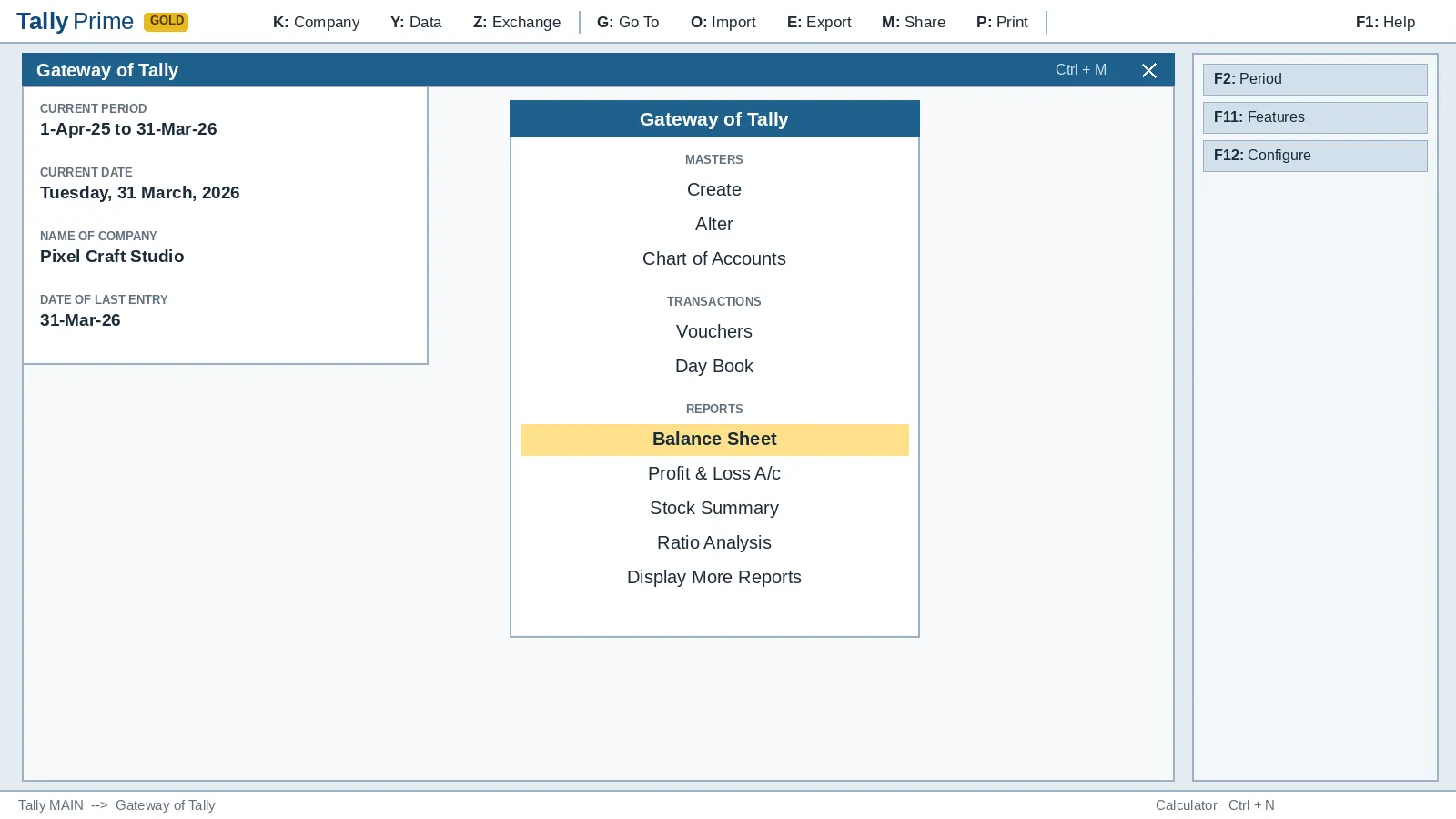
Step 5: Open the Balance Sheet
Press Alt+G, type Balance Sheet, and hit Enter. Or choose Balance Sheet from Gateway of Tally. Press F2 if you want to change the period.
Step 6: Configure, drill down, and export
Press F12 (Configure) to adjust the report. Press Alt+F5 for the detailed view, or Ctrl+H to switch between horizontal and vertical layouts. Press Enter on any group to drill down to ledgers and vouchers. When you are happy, export with Ctrl+E or print with Ctrl+P.
Example 1: How Do You Prepare a Balance Sheet for a Service Business in Tally?
Scenario: Pixel Craft Studio is a small graphic design studio run by its owner. The financial year is 2025-26 and the books close on 31-Mar-2026. There is no stock, and GST is left out to keep the numbers easy to follow.
Closing balances from the ledgers:
| Ledger | Group | Debit (₹) | Credit (₹) |
|---|---|---|---|
| Capital A/c | Capital Account | 3,00,000 | |
| Bank Term Loan | Loans (Liability) | 1,00,000 | |
| Sundry Creditors | Current Liabilities | 60,000 | |
| Design Fees | Sales Accounts | 8,30,000 | |
| Computers & Laptops | Fixed Assets | 2,40,000 | |
| Furniture | Fixed Assets | 60,000 | |
| Sundry Debtors | Current Assets | 1,80,000 | |
| Cash | Cash-in-Hand | 20,000 | |
| Current A/c | Bank Accounts | 2,50,000 | |
| Salaries | Indirect Expenses | 3,00,000 | |
| Rent | Indirect Expenses | 1,20,000 | |
| Electricity & Internet | Indirect Expenses | 48,000 | |
| Software Subscriptions | Indirect Expenses | 72,000 | |
| Total | 12,90,000 | 12,90,000 |
Debit equals credit, so the Trial Balance passes its checkpoint.
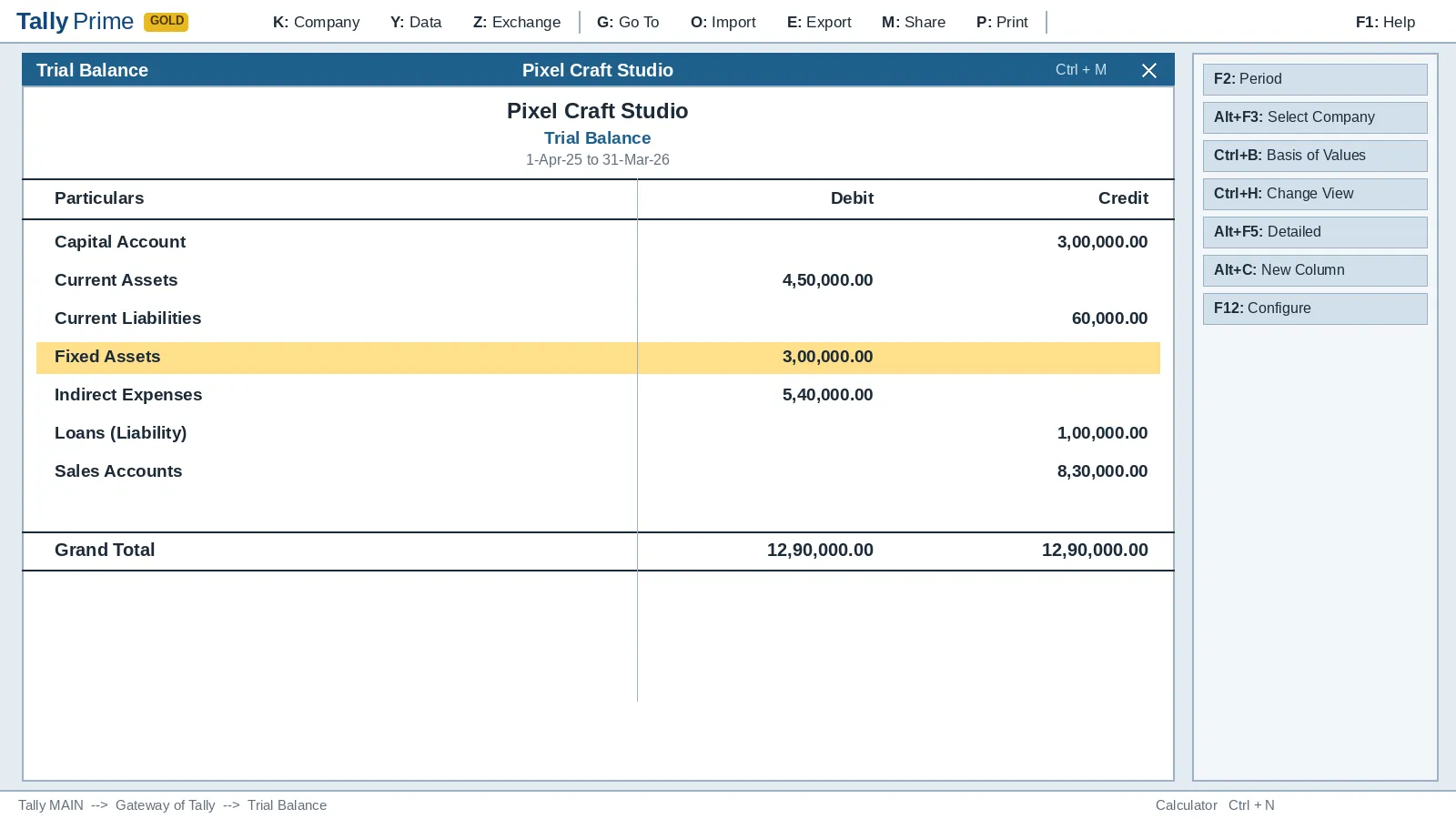
Profit calculation:
- Income: ₹8,30,000
- Indirect expenses: ₹3,00,000 + ₹1,20,000 + ₹48,000 + ₹72,000 = ₹5,40,000
- Net profit: ₹8,30,000 − ₹5,40,000 = ₹2,90,000
Balance Sheet as at 31-Mar-2026:
| Liabilities | ₹ | Assets | ₹ |
|---|---|---|---|
| Capital Account | 3,00,000 | Fixed Assets | 3,00,000 |
| Loans (Liability) | 1,00,000 | Current Assets | 4,50,000 |
| Current Liabilities | 60,000 | (Debtors 1,80,000 + Cash 20,000 + Bank 2,50,000) | |
| Profit & Loss A/c | 2,90,000 | ||
| Total | 7,50,000 | Total | 7,50,000 |
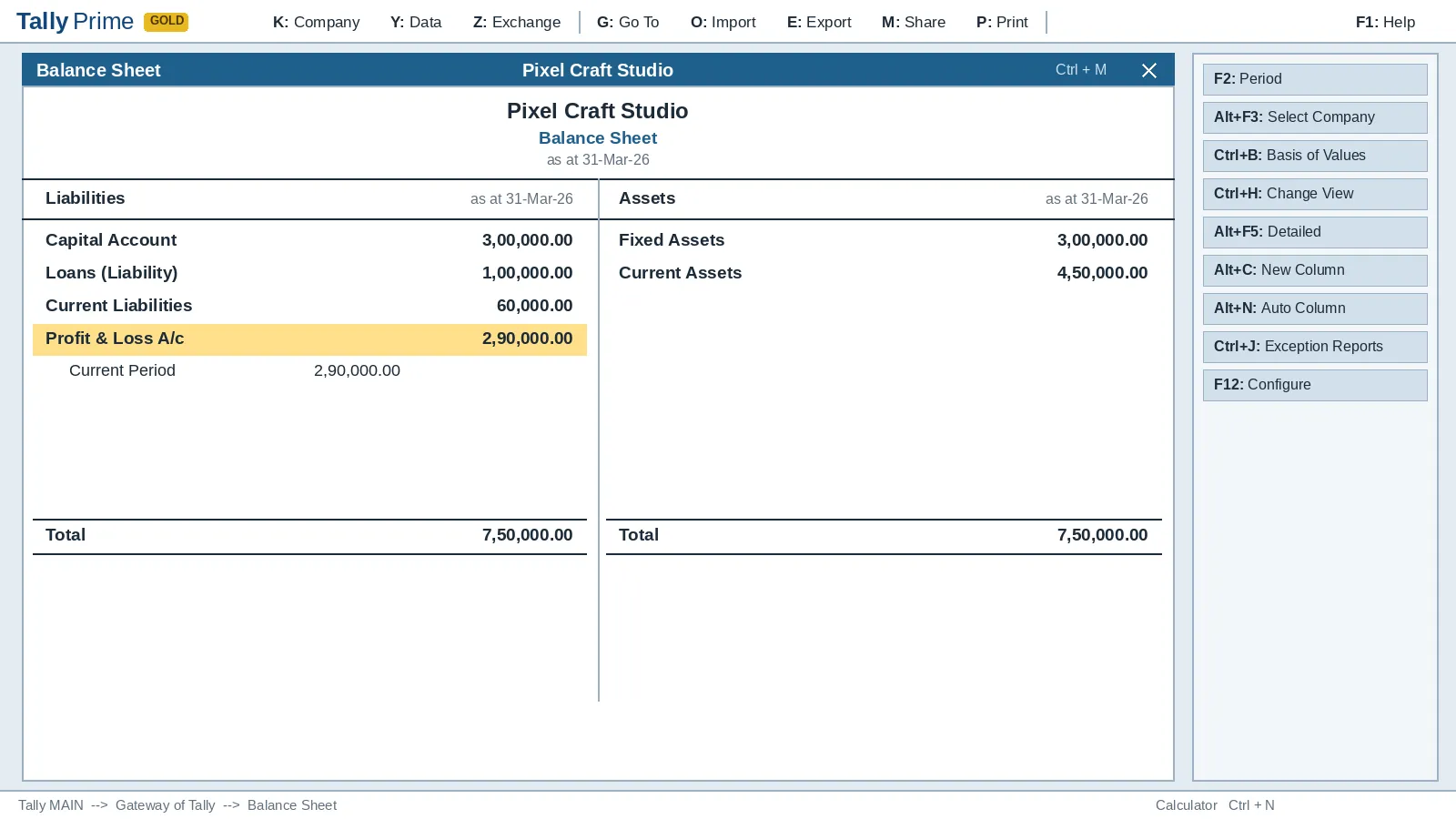
What to notice: The owner put in ₹3,00,000, and the business earned ₹2,90,000, so the owner’s stake has grown to ₹5,90,000. Outside liabilities are ₹1,60,000 (loan plus creditors). Add them up, and you get ₹7,50,000, exactly the value of the assets.
Example 2: How Do You Prepare a Balance Sheet for a Trading Business in Tally?
Scenario: Metro Mobile Accessories is a shop that buys and sells phone accessories. It carries stock, so we need a Trading account too. The closing stock is ₹2,60,000, which TallyPrime picks up from the Stock Summary when inventory is maintained.
Closing balances from the ledgers:
| Ledger | Group | Debit (₹) | Credit (₹) |
|---|---|---|---|
| Opening Stock | Stock-in-Hand | 2,00,000 | |
| Purchases | Purchase Accounts | 12,00,000 | |
| Freight Inward | Direct Expenses | 30,000 | |
| Rent | Indirect Expenses | 1,50,000 | |
| Salaries | Indirect Expenses | 2,40,000 | |
| Electricity | Indirect Expenses | 60,000 | |
| Shop Fittings | Fixed Assets | 1,20,000 | |
| Computer | Fixed Assets | 80,000 | |
| Shop Deposit | Deposits (Asset) | 50,000 | |
| Sundry Debtors | Current Assets | 2,50,000 | |
| Cash | Cash-in-Hand | 30,000 | |
| Current A/c | Bank Accounts | 2,70,000 | |
| Sales | Sales Accounts | 18,00,000 | |
| Capital A/c | Capital Account | 4,00,000 | |
| Bank Loan | Loans (Liability) | 2,00,000 | |
| Sundry Creditors | Current Liabilities | 2,40,000 | |
| GST Payable | Duties & Taxes | 40,000 | |
| Total | 26,80,000 | 26,80,000 |
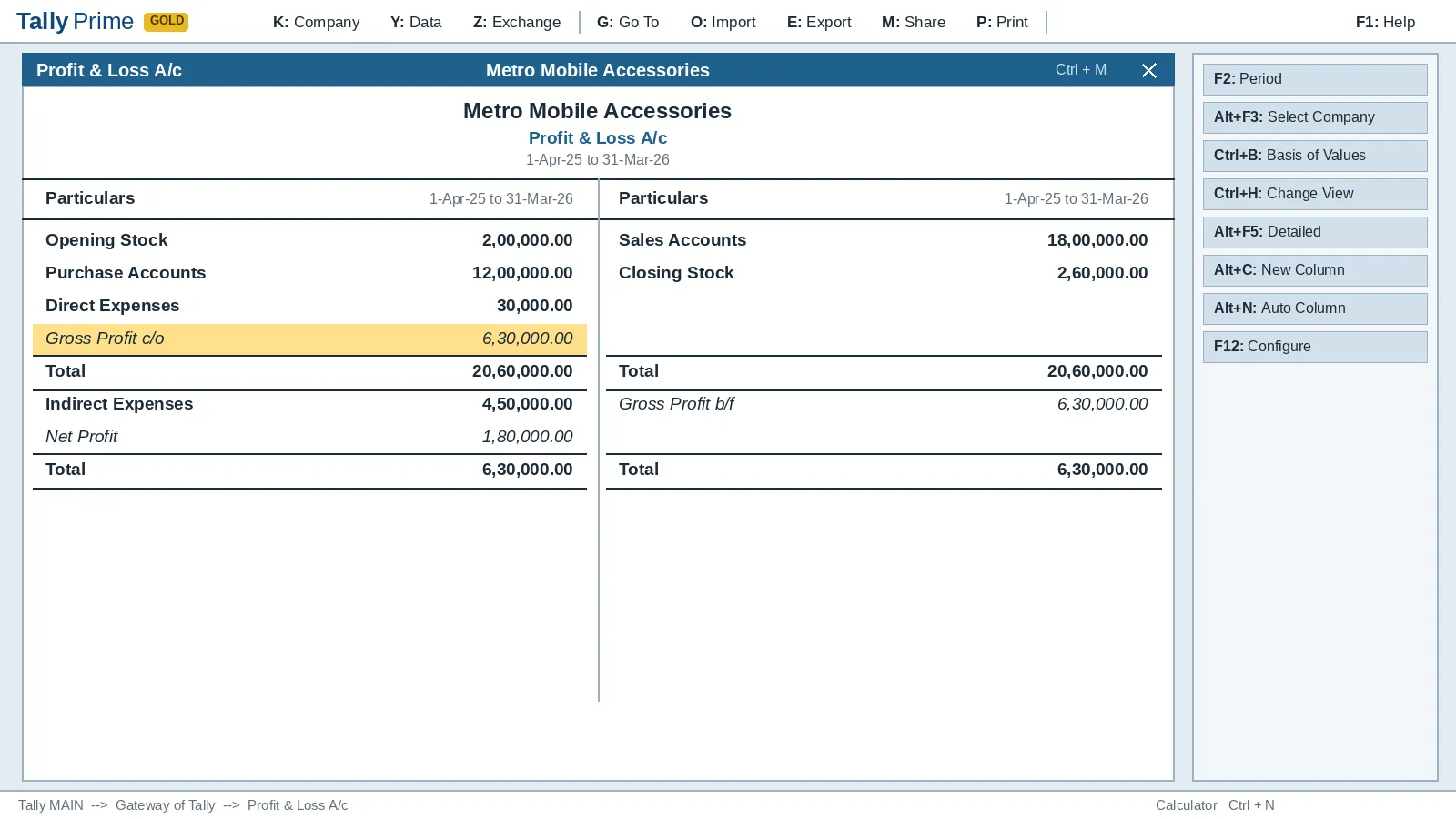
Trading and Profit & Loss calculation:
- Cost side: Opening stock ₹2,00,000 + Purchases ₹12,00,000 + Freight ₹30,000 = ₹14,30,000
- Revenue side: Sales ₹18,00,000 + Closing stock ₹2,60,000 = ₹20,60,000
- Gross profit: ₹20,60,000 − ₹14,30,000 = ₹6,30,000
- Indirect expenses: ₹1,50,000 + ₹2,40,000 + ₹60,000 = ₹4,50,000
- Net profit: ₹6,30,000 − ₹4,50,000 = ₹1,80,000
Balance Sheet as at 31-Mar-2026:
| Liabilities | ₹ | Assets | ₹ |
|---|---|---|---|
| Capital Account | 4,00,000 | Fixed Assets | 2,00,000 |
| Loans (Liability) | 2,00,000 | Current Assets | 8,60,000 |
| Current Liabilities | 2,80,000 | (Stock 2,60,000 + Deposit 50,000 + Debtors 2,50,000 + Cash 30,000 + Bank 2,70,000) | |
| Profit & Loss A/c | 1,80,000 | ||
| Total | 10,60,000 | Total | 10,60,000 |
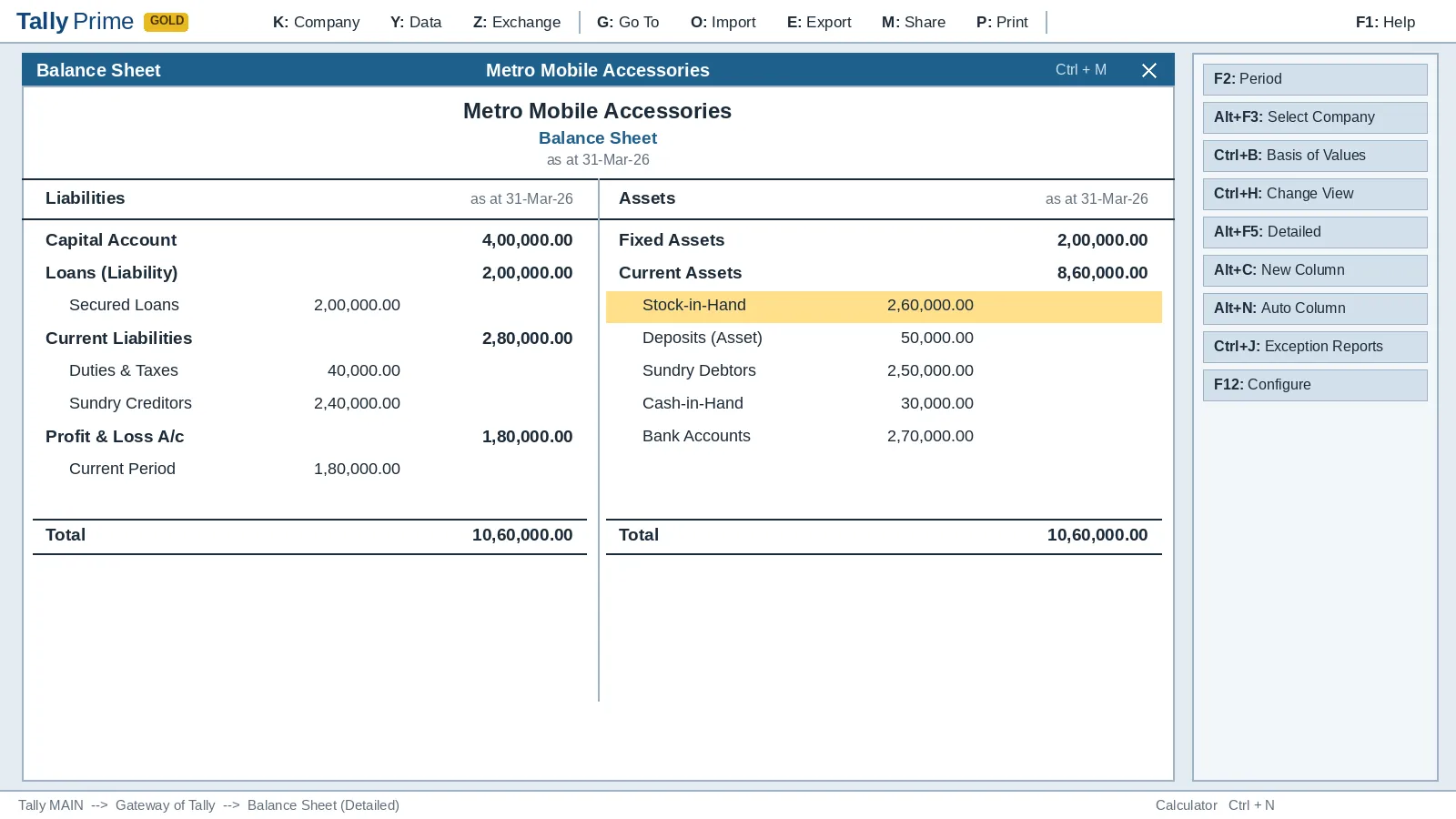
The lesson hiding in this example: Skip the closing stock and the sheet would still balance. But it would show a loss of ₹80,000 instead of a profit of ₹1,80,000. A balanced sheet is not always a correct one, which is why Step 4 matters.
Why Does My Balance Sheet Not Tally in TallyPrime?
This is the question that worries every beginner. Check these in order:
- Difference in opening balances: TallyPrime shows this when opening debit and credit balances do not match. Adjust the opening balance of another ledger by the same amount.
- Wrong group: A bank account showing a credit balance, or an expense sitting under assets, usually signals an entry in the wrong place.
- Closing stock: Missing or outdated stock distorts profit, and profit flows into the balance sheet.
- Wrong period: Press F2 and confirm you are looking at the right dates.
- Missing vouchers: Compare against the Day Book for gaps.
Pro tip: Start at the Trial Balance, then press Enter on any suspicious group to drill down to the ledger and voucher behind it.
Which TallyPrime Shortcuts Make the Balance Sheet Easier?
- Alt+G: Go to any report by typing its name
- F2: Change the period
- Alt+F5: Detailed view
- Ctrl+H: Switch to vertical view
- Alt+N: Auto Column, handy for comparing this year with last year
- Ctrl+B: Basis of Values, which can show working capital
- F12: Configure options such as excluding accounts with zero closing balance
- Ctrl+E / Ctrl+P: Export or print
Why Should Students and Career Switchers Learn This?
Because businesses run on it. Tally Solutions says TallyPrime serves over 2.7 million businesses and 7 million users across 100+ countries (Source: Tally Solutions, via an Oracle press release, February 2026).
That is a lot of owners who need someone who can produce a balance sheet and, more importantly, explain it.
In interviews, you may be asked why a balance sheet shows a difference in opening balances, or how closing stock changes profit. Learning with guided practice data helps. ICA Online offers a TallyPrime course that covers company creation, vouchers, and reports like the ones above, which is useful if you would rather learn with a structured path than piece things together alone.
Few related topics for your knowledge
- Company Creation In Tally Prime: From Beginning To End
- Trial Balance In Tally Prime: A Complete Guide For Beginners
- Chart Of Accounts In Tally Prime: A Complete Overview
- Bill Allocation In Tally Prime: A Complete Details
- Payroll In TallyPrime: Overview, Elements, Procedure
- Tally Prime Vs Tally ERP 9: Which One Is Better
Final Takeaway
A balance sheet in TallyPrime takes seconds to open. Earning the right to trust it takes good ledgers, complete vouchers, and a Trial Balance that agrees.
Here is a simple exercise: open TallyPrime, create a practice company, and key in both examples above. When your totals reach ₹7,50,000 and ₹10,60,000 on their own, you have learned more than any amount of reading could teach.
Want a mentor to check your work? ICA Online’s TallyPrime course is a good next step.
Frequently Asked Questions
1. How do you prepare a balance sheet in TallyPrime?
Create ledgers under the correct groups, record all vouchers, and check that the Trial Balance debit and credit totals match. Then press Alt+G and select Balance Sheet, or choose it from Gateway of Tally. TallyPrime builds the report automatically. Press F12 to configure the view and Ctrl+E to export it.
2. Why is my balance sheet not tallying in TallyPrime?
The most common cause is a “Difference in opening balances” entry, which appears when opening debit and credit balances don’t match. Adjust the opening balance of another ledger by that amount. Also check for ledgers placed under the wrong group, missing vouchers, and an outdated closing stock value.
3. How do I view a vertical balance sheet in TallyPrime?
Open the Balance Sheet and press Ctrl+H (Change View), then choose Vertical. You can also set it from F12 (Configure). The vertical view shows Sources of Funds (liabilities) at the top and Application of Funds (assets) below, all in a single column.
4. How do I export or print a balance sheet from TallyPrime?
Open the Balance Sheet and press Ctrl+E to export it as Excel or PDF, Ctrl+P to print it, or Ctrl+M to share it by email. Press Alt+F5 first if you want the detailed view with ledger-level figures included in the exported file.
5. What is the difference between a trial balance and a balance sheet?
A trial balance lists every ledger balance in debit and credit columns to confirm the books are arithmetically correct. A balance sheet shows only assets, liabilities, and capital on a given date, with profit or loss added. The trial balance is a checking tool; the balance sheet is the final statement.

- Preparing a Balance Sheet in Tally: A Step-by-Step TallyPrime Guide - November 27, 2026
- Master Data in SAP PP: The First Thing Interviewers Check - November 20, 2026
- Satyam Computer Services Scam: How ₹5,040 Crore in Cash Never Existed - November 13, 2026