
How To Delete A Company In Tally Prime: A Complete Guide
How to delete a company in Tally Prime is a very easy process, you just need to follow the correct steps to maintain the process. In this article, you will know how to delete a company in Tally Prime without facing any kind of difficulty.
Most of the time students do not know the exact process and they have to hover here and there. This makes the process much more tedious and confusing. Tally Prime allows companies to manage multiple business units all at a time.
In most of the cases, people forget to take the backup of the company which they have deleted from their Tally Prime software. Ensure that you do not make the same mistake from your end.
Table of Contents
- How To Delete A Company In Tally Prime?
- What Is The Process To Delete A Company In Tally Prime 7.0?
- Without A Password How Can You Delete A Company In Tally Prime?
- Ways To Delete A Company Permanently In Tally Prime?
- How To Delete A Company In Tally Prime 6.0?
- Frequently Asked Questions
- Final Takeaway
How To Delete A Company In Tally Prime?
There are some of the crucial steps that you need to follow in order to delete a company in Tally Prime. Some of the key factors that you must consider here are as follows:-
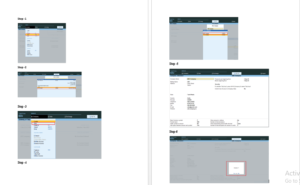
- Open Tally Prime and reach the Gateway of Tally screen (the main menu). If a company is already open, shut it:
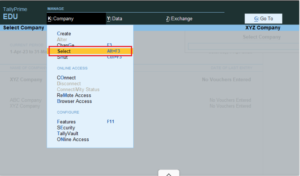
- Press Alt + K (Company menu) > Select Shut Company (or press Alt + F1).
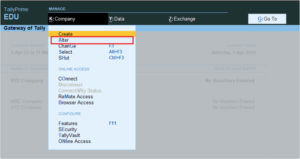
- From the Gateway of Tally, press Alt + K (Company) to open the Company menu.
- Alternatively, some versions may use Alt + F3 for Company Info.
- Select Alter from the menu.
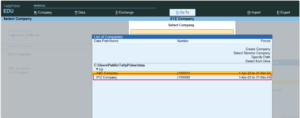
- In the List of Companies, highlight the company you want to delete using arrow keys and press Enter. This opens the Company Alteration screen.
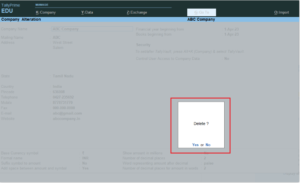
- Company Alteration Screen, press Alt + D to delete.
- Tally Prime will prompt: “Delete? (Yes or No)”. Type Yes or press Y.
- It may ask for confirmation again: “Are you sure?” Confirm with Yes.
What Is The Process To Delete A Company In Tally Prime 7.0?
- Open Tally Prime 7.0 and reach the Gateway of Tally (main menu). If a company is open:
- Press Alt + K (Company) > Shut (or use Alt + F1).
- From the Gateway of Tally, press Alt + K (Company) to open the Company menu.
- In some views, you can also use Alt + F3 for Company operations.
- Select Alter.
- In the List of Companies, highlight the company you want to delete using arrow keys, then press Enter to open the Company Alteration screen.
- Company Alteration screen, press Alt + D (Delete).
- Confirm the prompt: “Delete? (Yes or No)” by pressing Y or typing Yes.
- If you are prompted then confirm again: “Are you sure?” with Yes.

Without A Password How Can You Delete A Company In Tally Prime?
There are some simple steps that you need to follow that how to delete a company without a password. So, let’s explore the steps one after the other to have a clear insight to it. Therefore, let’s explore the points to have a clear idea into it.
Deleting a company is permanent and irreversible. All data will be lost forever. Always backup first (Gateway of Tally > Alt+Y > Backup).
Tally Prime has two main security features that may require passwords:
- User Security Controls (admin/users with permissions).
- TallyVault (data encryption).
If No Password Protection is Set (Most Common Case)
You can delete the company directly without any password using the standard process:
- Open Tally Prime and go to Gateway of Tally. Shut any open company (Alt+K > Shut).
- Press Alt+K (Company) > Alter.
- Select the company from the list and press Enter.
- You can press on Alt+D to delete.
- Confirm “Delete? (Yes or No)” and any follow-up prompts with Yes.
No password is prompted if security controls or TallyVault are not enabled.
Ways To Delete A Company Permanently In Tally Prime?
Always take a full backup first (Gateway of Tally > Alt+Y (Data) > Backup). Store the backup in a safe location (external drive or cloud). Now let’s get through some of the methods to delete a company permanently in Tally Prime:-
Method -1 Standard In-App Deletion (Recommended for Normal Cases)
- Open Tally Prime and go to Gateway of Tally (main menu).
- If a company is open, shut it: Press Alt + K (Company) > Shut (or Alt + F1).
- Press Alt + K (Company) > Alter (or use Alt + F3 in some views).
- In the List of Companies, highlight the company to delete and press Enter (opens Company Alteration screen).
- Press Alt + D (Delete).
- Confirm: “Delete? (Yes or No)” → Press Y or Yes.
- Confirm again if prompted: “Are you sure?” → Yes.
Method -2 Manual Folder Deletion (For Permanent Removal, Even If Password-Protected or In-App Deletion Fails)
- This bypasses Tally entirely and ensures all data files are erased from your computer. Useful if the company has TallyVault encryption, forgotten security passwords, or errors prevent in-app deletion.
- Close Tally Prime completely (ensure no background processes).
- Identify the company folder:
- In Tally (before closing), note the company number (shown when selecting/loading, e.g., “Company Name – 10001”).
- Or check data path: F12 (Configure) > Data Configuration > Data Directory.
- Open File Explorer and navigate to the data directory.
- Locate and permanently delete the company’s numbered folder.
- Restart Tally Prime—the company will no longer appear.
Few related topics for your knowledge
- Company Creation In Tally Prime: From Beginning To End
- Trial Balance In Tally Prime: A Complete Guide For Beginners
- Chart Of Accounts In Tally Prime: A Complete Overview
- Bill Allocation In Tally Prime: A Complete Details
- Payroll In TallyPrime: Overview, Elements, Procedure
- Tally Prime Vs Tally ERP 9: Which One Is Better
How To Delete A Company In Tally Prime 6.0?
Deleting a company in Tally Prime Release 6.0 is permanent and irreversible. All data (ledgers, vouchers, transactions, inventory, etc.) will be lost forever. Always backup your company data first (Gateway of Tally > Alt+Y (Data) > Backup).
You cannot delete the currently loaded/active company. Shut it first if needed.
The process in Release 6.0 is the same as in other recent Tally Prime versions, with no changes to company deletion.
Step By Step Process To Delete A Company In Tally Prime 6.0
- Open Tally Prime 6.0 and reach the Gateway of Tally (main menu).
- If a company is open, shut it: Press Alt + K (Company) > Shut (or Alt + F1).
- Press Alt + K (Company) to open the Company menu.
- Alternatively, use Alt + F3 for Company operations in some views.
- Select Alter.
- In the List of Companies, highlight the company you want to delete using arrow keys, then press Enter to open the Company Alteration screen.
- Press Alt + D (Delete).
- Confirm the prompt: “Delete? (Yes or No)” by pressing Y or Yes.
- Confirm again if prompted: “Are you sure?” with Yes.
Frequently Asked Questions
- Is deleting a company in Tally Prime permanent?
Yes, deleting a company is permanent and irreversible. All data, including ledgers, vouchers, transactions, and inventory records, will be lost forever with no built-in recovery option. Always take a backup first (Gateway of Tally > Alt+Y (Data) > Backup) to avoid accidental data loss.
- How do I delete a company in Tally Prime?
- Go to Gateway of Tally.
- Shut any open company if needed (Alt+K > Shut).
- Press Alt+K (Company) > Alter.
- Select the company from the list and press Enter.
- Company Alteration screen, after that you need to press on Alt+D (Delete).
- Confirm the prompts with Yes. The company will be removed from the list.
- Can I delete the currently open/active company?
No, you cannot delete the currently loaded company. First, shut it (Alt+K > Shut or Alt+F1), then proceed to Alter and delete from the list of companies.
- What should I do if the company is password-protected or I get an error like “company in use”?
- If user security or TallyVault is enabled, you need admin credentials for in-app deletion.
- For “company in use” errors (common in multi-user editions like Gold), ensure no other users/sessions are accessing it—close all Tally instances or restart.
- Alternative: Close Tally and manually delete the company’s numbered folder from the data directory (usually C:\TallyPrime\Data).
- How does deleting a group company work in Tally Prime?
Deleting a group company only removes the grouping structure—it does not delete the member companies. The individual member companies remain intact and can be accessed separately. Delete member companies individually if needed.
Final Takeaway
Hence, these are some of the crucial steps you need to follow for deleting a company in Tally Prime. In this article, you have already got the insight how to delete a company in Tally Prime. So, you should consider the facts to meet your goals with complete ease.
You can share your views and comments in our comment box while meeting your goals with complete ease. However, you need to follow the correct process to meet your requirements quite easily.

- Power BI Course Online: The Skill That Turns Spreadsheets Into a Career - October 15, 2026
- Data Science Course with Placement: Is It Worth It or Just Marketing? - October 9, 2026
- What is ITC in GST: The Complete Guide You Need - September 26, 2026