How to Delete Ledger in TallyPrime
Accidentally created a duplicate account? Or perhaps you have old, unused records cluttering your books? If you are wondering how to delete a ledger in TallyPrime, you are in the right place. Managing your digital accounts efficiently is key to clean bookkeeping. This guide will walk you through the process quickly, even if you’ve run into errors before.
Table of Contents
- Things to Check Before Deleting a Ledger in TallyPrime
- Step-by-Step: How to Delete a Ledger in TallyPrime
- How to Delete Ledger in TallyPrime Using Search
- Why You Can’t Delete a Ledger in TallyPrime (Common Errors)
- How to Remove Ledger Used in Vouchers
- Can You Delete Default Ledgers in TallyPrime?
- Difference Between Deleting and Disabling a Ledger
- Conclusion
- Frequently Asked Questions
Things to Check Before Deleting a Ledger in TallyPrime
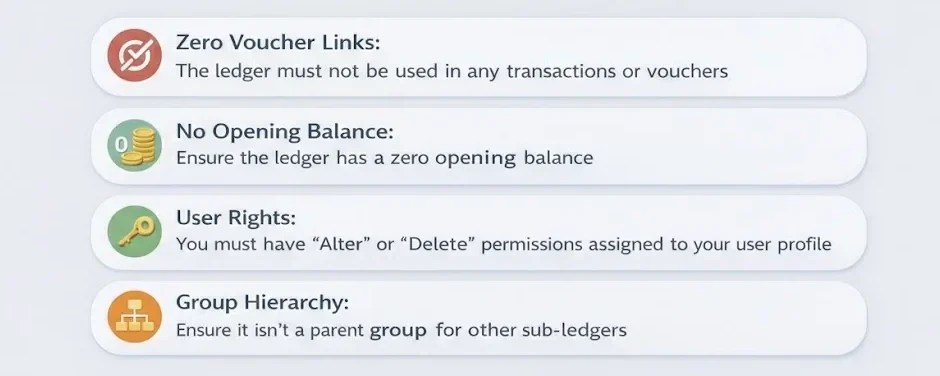
Before you hit that delete button, TallyPrime has a few “safety locks” in place. If these conditions aren’t met, the software won’t allow the deletion.
Step-by-Step: How to Delete a Ledger in TallyPrime
The most common way to remove a ledger is through the Alteration screen. Follow these simple steps:
Step 1: Open the Ledger Alteration Screen
- Go to the Gateway of Tally.
- Select Alter (or go to Chart of Accounts > Ledgers).
- Select Ledger from the list.
- Choose the specific ledger you wish to remove and press Enter.
Step 2: Use the Delete Command
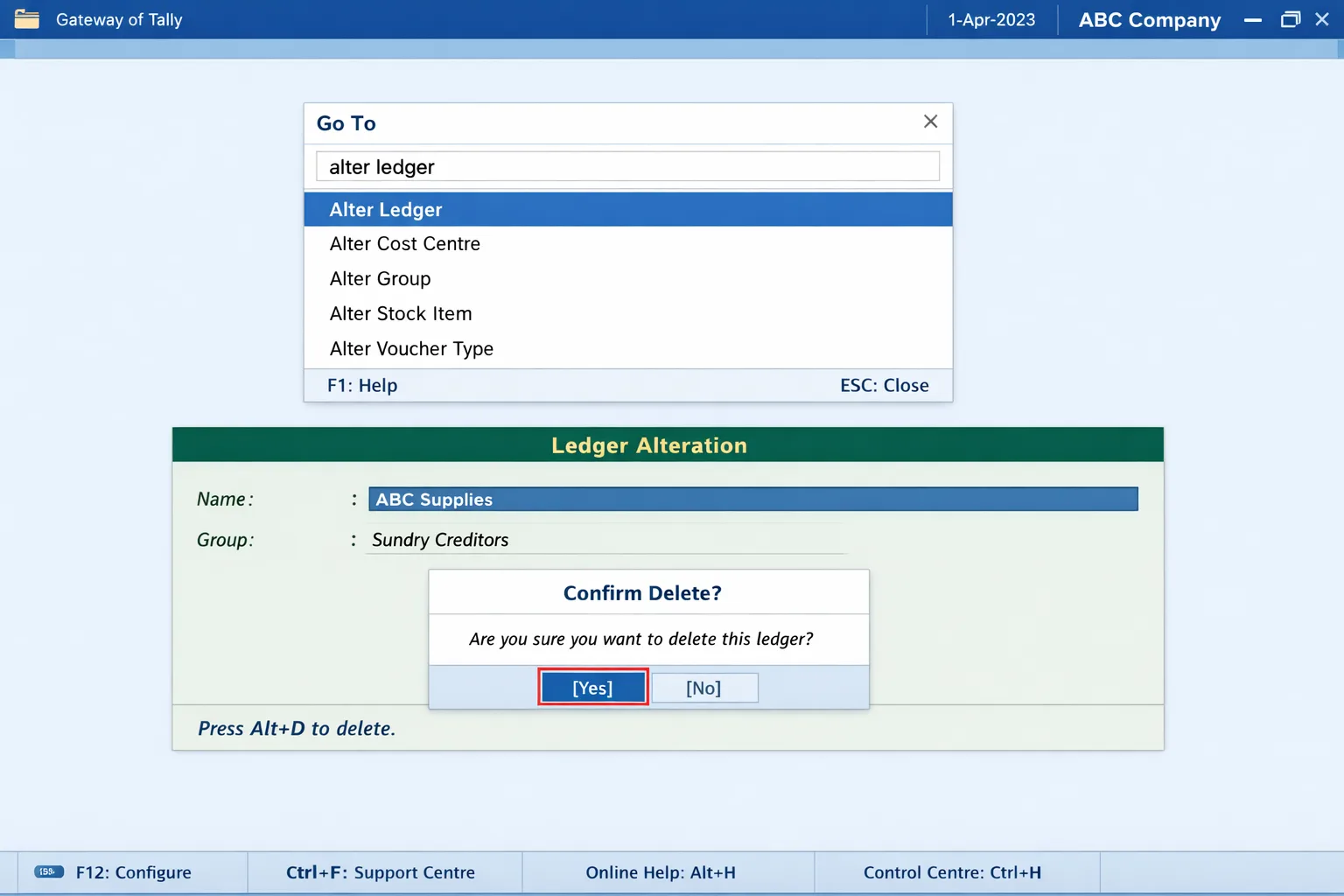
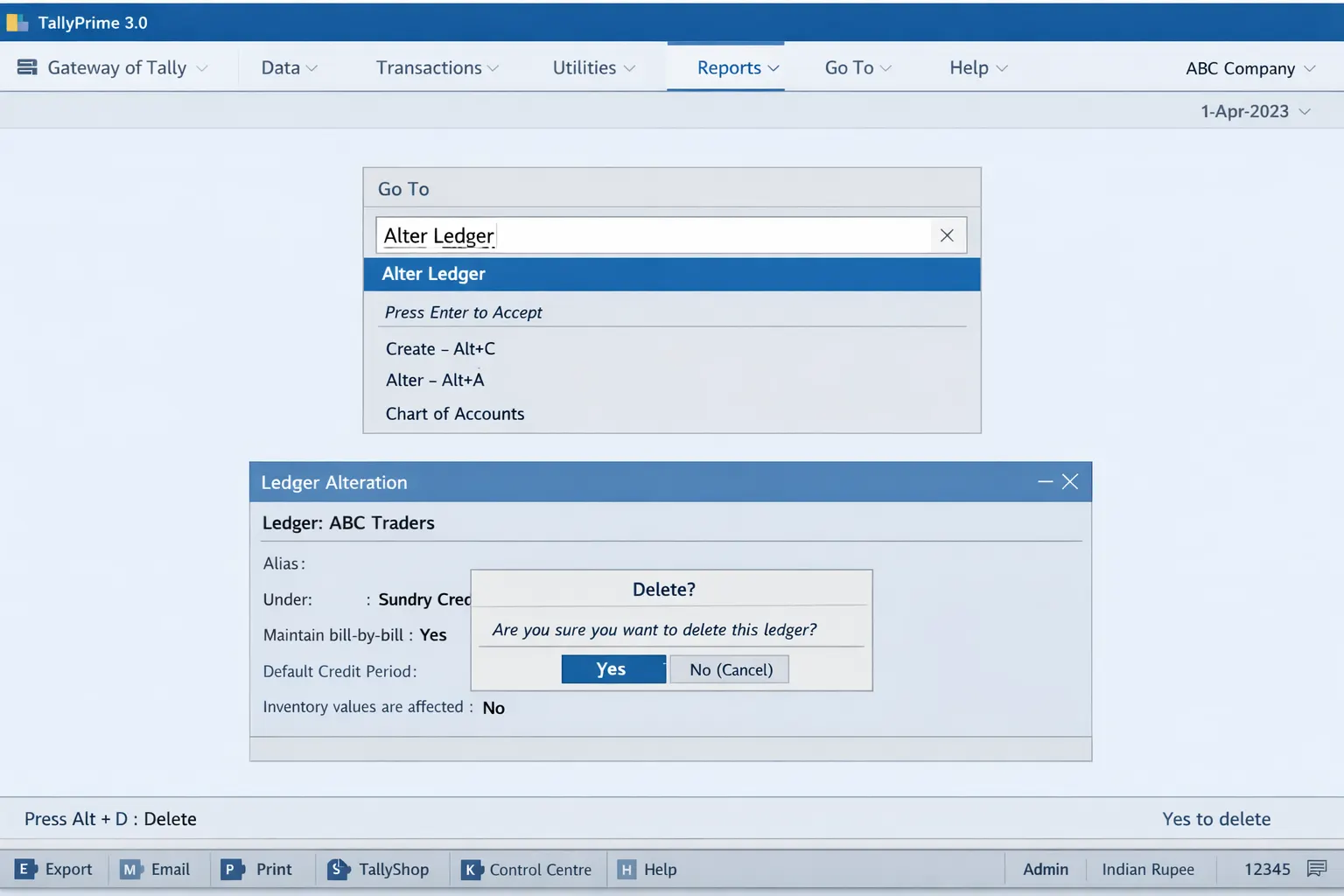
- Once the Ledger Alteration screen is open, press the shortcut key Alt + D.
- A confirmation box will appear asking, “Delete?”.
- Press Y or Enter to confirm.
Pro Tip: The Alt + D shortcut is the universal delete command across almost all screens in TallyPrime!
Note: You can delete the ledger if no vouchers have been created under it. If you want to delete a ledger for which vouchers have been created, you have to first delete all the vouchers from that ledger and then delete the ledger account.
How to Delete Ledger in TallyPrime Using Search
If you have thousands of accounts, scrolling through a list is slow. Use the “Go To” feature to save time.
- Press Alt + G (Go To) from any screen.
- Type “Alter Ledger” in the search bar and hit Enter.
- Search for your ledger name and select it.
- Press Alt + D and confirm.
This method is highly recommended for speed and efficiency in modern accounting workflows.

Why You Can’t Delete a Ledger in TallyPrime (Common Errors)
Sometimes, you might press Alt + D and… nothing happens. Here is why Tally might be blocking you:
- Voucher Dependency: If you have even one entry (like a payment or receipt) linked to that ledger, Tally protects the data integrity by preventing deletion.
- Opening Balance: An existing opening balance acts as a “record,” which blocks deletion.
- Stock Item Links: If a ledger is linked to specific stock items or cost centers, it stays locked.
- System Ledgers: Tally prevents the deletion of core operational accounts.
How to Remove Ledger Used in Vouchers
If you see that a ledger is “in use,” you can’t delete it immediately. You have two choices:
- Find and Delete Vouchers: Go to Display More Reports > Account Books > Ledger. Select the ledger to see all transactions. Delete these vouchers using Alt + D.
- Reassign Vouchers: Open the vouchers and change the ledger to a different one. Once the original ledger is “empty,” you can delete it.
- Zero Out: If you can’t delete it, ensure the opening balance is 0 to keep reports clean.
Can You Delete Default Ledgers in TallyPrime?
TallyPrime comes with two pre-defined ledgers: Cash and Profit & Loss A/c.
The short answer is No. You cannot delete these default ledgers. However, you can Alter them to change their names (e.g., changing “Cash” to “Petty Cash”) or simply leave them unused.
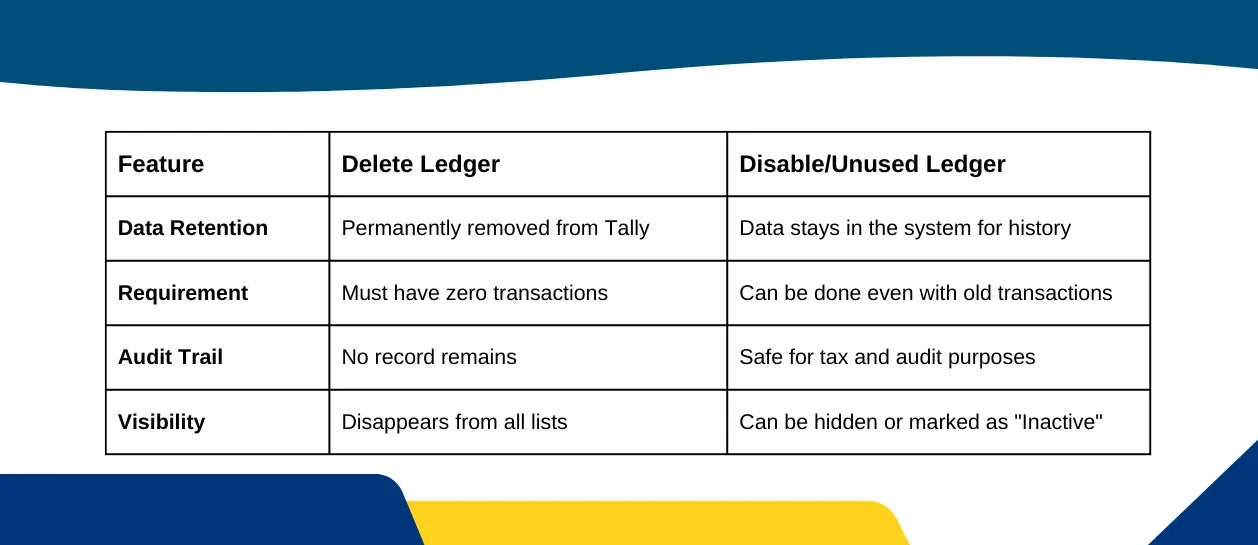
Difference Between Deleting and Disabling a Ledger
Sometimes, deleting isn’t the best option, especially if you want to keep historical data for audits.
Conclusion
Knowing how to delete ledger in TallyPrime helps keep your company data organized and error-free. Always remember to check for linked vouchers before trying to delete. If you can’t delete a ledger due to historical data, simply renaming it or setting it to inactive is a great alternative.
Few related topics for your knowledge
- Company Creation In Tally Prime: From Beginning To End
- Trial Balance In Tally Prime: A Complete Guide For Beginners
- Chart Of Accounts In Tally Prime: A Complete Overview
- Bill Allocation In Tally Prime: A Complete Details
- Payroll In TallyPrime: Overview, Elements, Procedure
- Tally Prime Vs Tally ERP 9: Which One Is Better
Frequently Asked Questions
1. Can I delete a ledger after a voucher entry?
No. You must first delete or reassign all vouchers associated with that ledger before TallyPrime will allow you to delete it.
2. How to delete multiple ledgers in TallyPrime at once?
Go to Chart of Accounts > Ledgers. Press Spacebar to select multiple ledgers. However, Tally currently requires you to delete ledgers individually via the Alteration screen for data safety.
3. Can I recover a deleted ledger?
No. Once a ledger is deleted in TallyPrime, it is gone permanently. Always ensure you have a recent backup of your data before performing deletions.
4. Does deleting a ledger affect my financial reports?
If you successfully delete a ledger (meaning it had no transactions), your reports will remain accurate. If you delete vouchers to enable ledger deletion, your Balance Sheet and P&L will change accordingly.
5. What is the shortcut key to delete a ledger?
The shortcut key is Alt + D while on the Ledger Alteration screen.
6. Why is the delete option greyed out?
This usually happens because the ledger is either a default system ledger (like Cash) or you do not have the necessary administrative permissions.

- Interview Training Course: Why Skilled Candidates Still Get Rejected - September 11, 2026
- Accounting Certificate Online: Is It Actually Worth It in 2026? - September 5, 2026
- SAP MM Module T-Codes: The Complete List Every Beginner Actually Needs - August 28, 2026