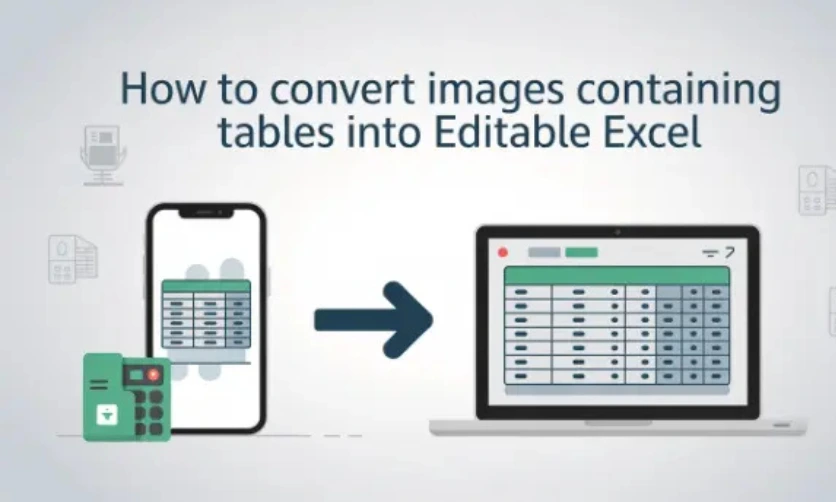
How to Convert Images Containing Tables into Editable Excel
If you are someone who has to work with invoices, reports or screenshots, you can tell how normal it is to receive tabular data locked inside an image. It may be a PNG, JPG, or any other image format.
You can easily view the data, but when you have to turn it into an editable and structured form, the problem starts. You have to manually retype everything.
This requires a lot of time and still there’re chances of errors.
The good news is that there’s an easy and automated way of converting images containing tabular data into Excel sheets. You don’t need to install software or go through complicated steps.
In this blog post, I will talk about it in detail, removing any doubts that you may have about the procedure.
Let’s explain how it works and how to get clean and usable results.
Table of Contents
Why Tables in Images Are Hard to Work With
For most programs and algorithms, images contain pixels. They don’t see any data.
The same goes for Excel, the widely used format for structured data. Copying and pasting images doesn’t work, and manual retyping feels like the only solution, which is time-consuming and error-prone.
Online OCR tools fix this problem. They work by identifying text and table structure. They don’t just read words, but also detect rows, columns, and cell boundaries. This helps make sure the tabular data is converted into the exact place in Excel.
The Fast and Practical Way to Convert Images into Excel Files
The quickest and easiest way to perform image to Excel conversion is through JPG to Excel converter, a dedicated tool designed to convert image tables into Excel sheets with the greatest accuracy.
Now let’s find out what it takes to use this tool.

Convert an Image Table to Excel Step by Step
The procedure is simple and easy. It won’t give you any hard time, even if this is your first time using an OCR-based tool.
Step 1: Prepare Your Image
Before you start, take some time to preprocess the image you want to convert.
- Make sure the tabular data is visible and readable
- Fix or crop out unnecessary areas, such as margins or notes
- Ensure rows and columns are identifiable
Step 2: Upload the Image
Access the online tool and insert your image file. You can copy and paste or upload it directly from your device.
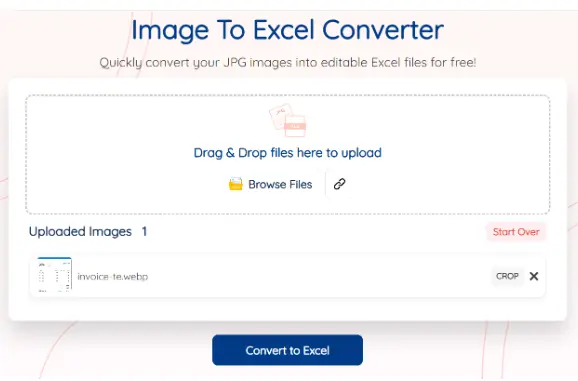
Step 3: Hit the Conversion Button and Let the OCR Do Its Work
After uploading the image, click on the “Convert to Excel” button. The tool will automatically start processing the image.
The OCR scans the image and recognizes:
- Text inside each cell
- Column and row alignment
- Numeric values and headers
All of this happens in a couple of seconds.
Step 4: Download the Converted Excel File
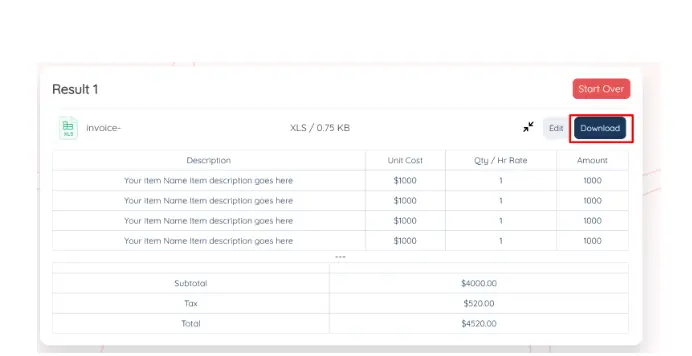
Once the processing is done, download the converted Excel file. Open it in Microsoft Excel. You will see the table converted into editable rows and columns. You can also preview or edit it before downloading.
Few insightful articles on Excel to improve your knowledge:
The Benefits That Make Online Conversion So Useful
This method is suitable for people who work with image tables, whether regularly or occasionally.
Here’s why it’s practical.
No Learning Curve
You do not have to know OCR or Excel import configurations. Uploading an image is what everybody knows how to do.
Works on Any Device
You can convert images from the phone, tablet, or laptop. You just need a browser, and you’re good to go.
Saves Real Time
Manual typing of a table with 50 rows takes half an hour or longer. OCR does it in seconds.
Keeps Data Editable
Once the file is in Excel, you can sort, filter, pull formulas, and clean the data properly.
Tips to Obtain Accurate Excel Output
Online tools are powerful but it is the quality of the image that matters. These tips are a noticeable difference.
Use High-Resolution Images
If the text looks fuzzy to your eyes, it will confuse the OCR too. Try to use original files rather than screenshots that are compressed.
Avoid Skewed Photos
If you’re taking a picture of a printed table, you should keep the camera straight. Tilted images have a tendency to cause columns to become misaligned.
Increase Contrast If Needed
Light color on a light background is more difficult to see. A quick tweaking of contrast before uploading can increase accuracy.
Keep Borders Visible
Tables that have visible grid lines convert better. If borders are either faint or absent, OCR may combine columns.
What to Check after Conversion
Once you have opened the Excel file, do a quick review.
Check Number Formatting
Sometimes numbers come in as text. Select the column and convert it to the format “Number” if necessary.
Verify Headers
Make sure that column headers are correctly placed and spelled. OCR usually gets them right, but it is worth checking.
Scan for Missing Cells
If one of the rows appears to be incomplete, compare it to the original image. Small fixes are easier than retyping it all.
When Online Tools Are the Best Option
It is great to use an online JPG to Excel Converter when:
- You get scanned reports or screenshots
- You need quick results
- You don’t want to install extra software
- You work on different devices
For most of our daily activities, this approach is more than sufficient.
Wrapping Up
Tables inside images do not have to slow you down.
With a good functioning image to Excel tool, you can transform your static data into something that you can actually work with.
The process is relatively fast and simple. You need to preprocess the image, upload it into the tool, and then download the converted Excel file.
If you frequently work with image-based tables, bookmarking a good JPG to Excel Converter can save you hours of repetitive work.
Once the data is in Excel, you can easily edit, copy, and share it with others. This ultimately helps simplify your everyday workflows.

- Power BI Course Online: The Skill That Turns Spreadsheets Into a Career - October 15, 2026
- Data Science Course with Placement: Is It Worth It or Just Marketing? - October 9, 2026
- What is ITC in GST: The Complete Guide You Need - September 26, 2026